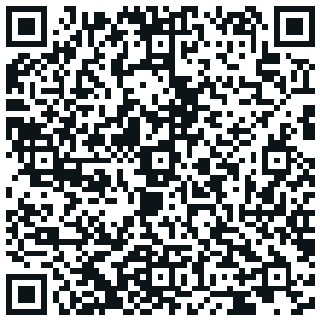
Hand someone your contact details with one scan
QRCraft builds a vCard QR code that saves straight into a phone's contacts app, no app or typing required.
A business card gets typed into a phone eventually, if it survives that long. A vCard QR code skips the typing. Scan it, and a phone offers to save the contact directly, with the name, phone number, email, and company already filled in. QRCraft's Contact QR type builds this from a short form. This page covers what goes into the code, how it works once printed, and how to style it to match the rest of your materials.
Choose Contact as the QR type in the editor and fill in first name, last name, phone, email, and organization. QRCraft encodes these fields directly into the QR pattern in a standard contact-card format, so a phone can read and offer to save them without needing a network connection. Like WiFi, email, and SMS codes, this is a directly encoded type: the details are written into the pattern itself when you save, rather than looked up from a link. If your details change, generate a new code with the updated information.
The Contact QR type asks for first name, last name, phone, email, and organization, and encodes them in a standard contact-card format. That short list is deliberate. It covers what a phone needs to build a usable contact entry, without asking for details a QR code is not the right place to hold, such as a full bio or a photo. If you need someone to reach a website, portfolio, or social profile as well, add a separate website or social-link QR code alongside the contact one rather than trying to stretch the vCard fields to cover it.
A Contact QR code fits anywhere a printed business card would. It also fits places a paper card cannot go: a name badge at an event, the footer of a printed proposal, a desk sign, or a packaging insert for a small business. Because the whole point is a fast, accurate save, keep the fields themselves simple and correct. A typo in a phone number is more disruptive here than on a paper card, since the number goes straight into someone's contacts without a second read.
QRCraft applies dot and corner styles, custom colors, and a logo to a Contact code the same way it does to any other type, with a live preview while you adjust settings. Custom colors, shapes, and logo upload are part of the Pro and Business plans, while a free account can still create and print a working Contact code with the default styling.
Fill in your details once and get a code that saves straight to a phone's contacts.
Creating and saving QR codes needs a free account, and every plan has usage limits.